There are many applications available that allow you to edit PDF files on a Windows computer. One of these is SwifDoo PDF, which comes with a free trial version. You can use it not only to edit text in PDFs but also to add or remove pages, add comments, highlight, and sign documents with certificates.
Versatile PDF Tools
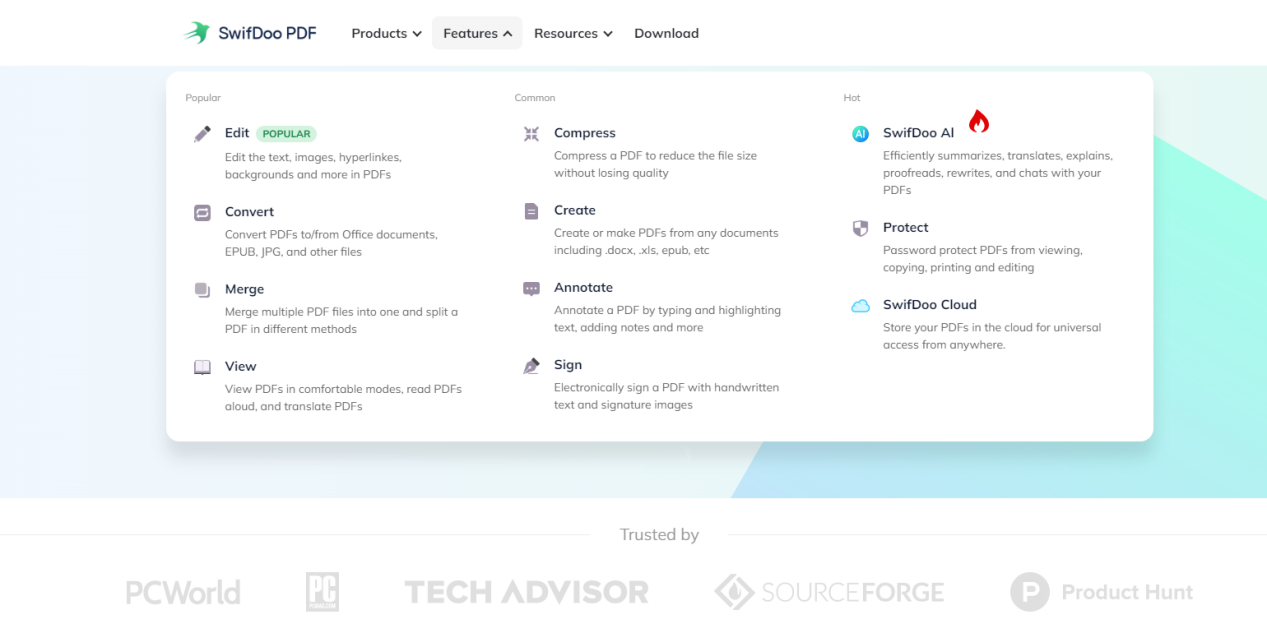
SwifDoo PDF is a versatile PDF program that helps you work with PDF files downloaded from sales applications, as well as files you have on your computer from another source.
The SwifDoo PDF Editor allows you to:
-
Reorder PDF pages using drag-and-drop
-
Editing PDF text and images
-
Adding/Removing pages from PDF
-
Combining several PDFs into one document
-
Converting PDF pages to: JPG, PNG, BMP, TIF
-
OCR integration
-
Saving PDF text content to a text file
-
Marking text with color (highlighting)
-
Adding a signature or stamp (from a graphic file) anywhere on the page
-
Adding your own graphics from your computer’s hard drive
-
Adding your own text on the page – both multi-line and scaled single-line, with the rotation option
-
PDF encryption/decryption
Example Usage Scenarios and Best Practices
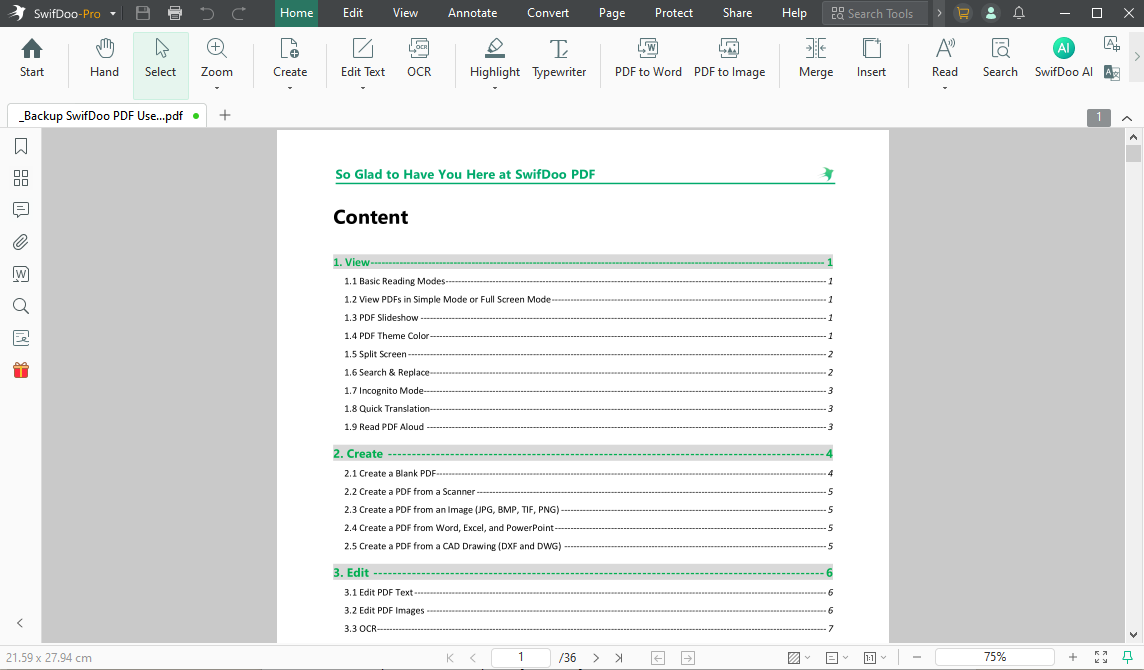
SwifDoo PDF is applicable across a wide range of industries and business contexts. To ensure the effectiveness and reliability of such solutions, it is worth following a few good practices.
Scenario I:
-
You issue a policy/offer and download the PDF.
-
You edit it in the PDF editor:
– add a signature/stamp/logo/your own advertisement and whatever you want;
– You indicate to the client where to sign or what to pay attention to;
– You add your own PDF at the end – with your agency’s advertisement or other content that you want the client to receive together and inseparable from the original document.
– If you are annoyed that there is an unnecessary page in the PDF file that you don’t want to send to the client, you can delete it from the PDF file. -
You encrypt the PDF with a password.
-
You send it by email directly from the program’s portal.
Scenario II:
-
You have an encrypted PDF file and want to remove the password.
-
You open the PDF editor and load the file into the editor.
-
You save this file with the same or a new name.
How to Edit a PDF with SwifDoo PDF
After importing the file, you can edit text blocks, graphics, and shapes, change colors, and add annotations. Once you’ve finished making changes, export the document as a PDF or convert it to another format.
Here’s how to do it step by step:
- Open the document in SwifDoo PDF.
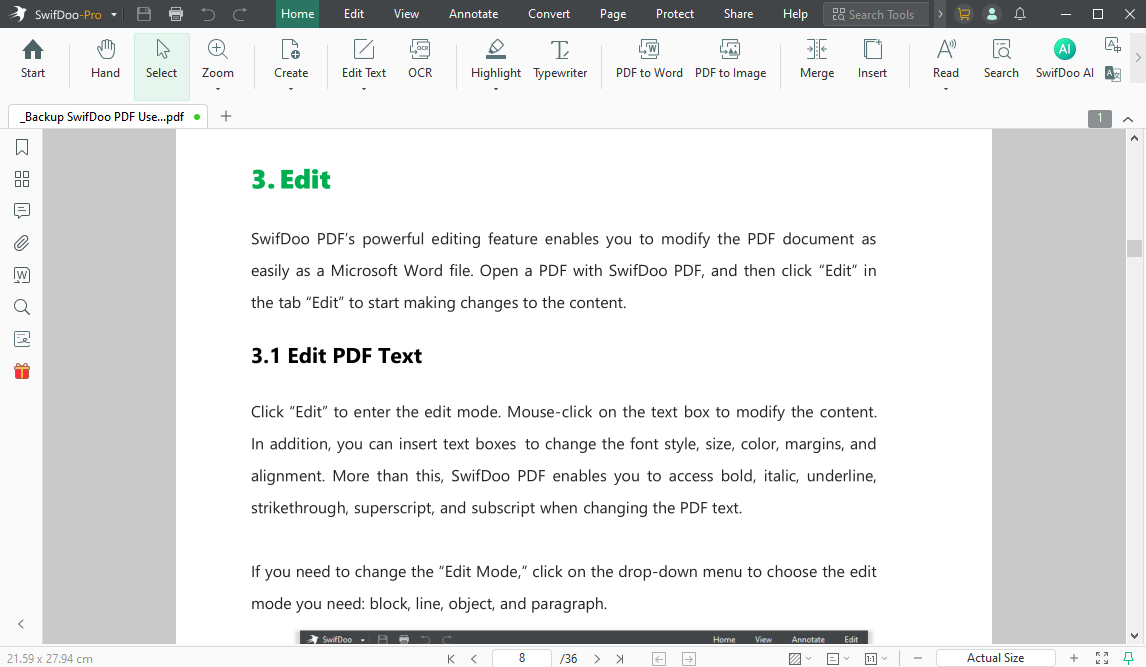
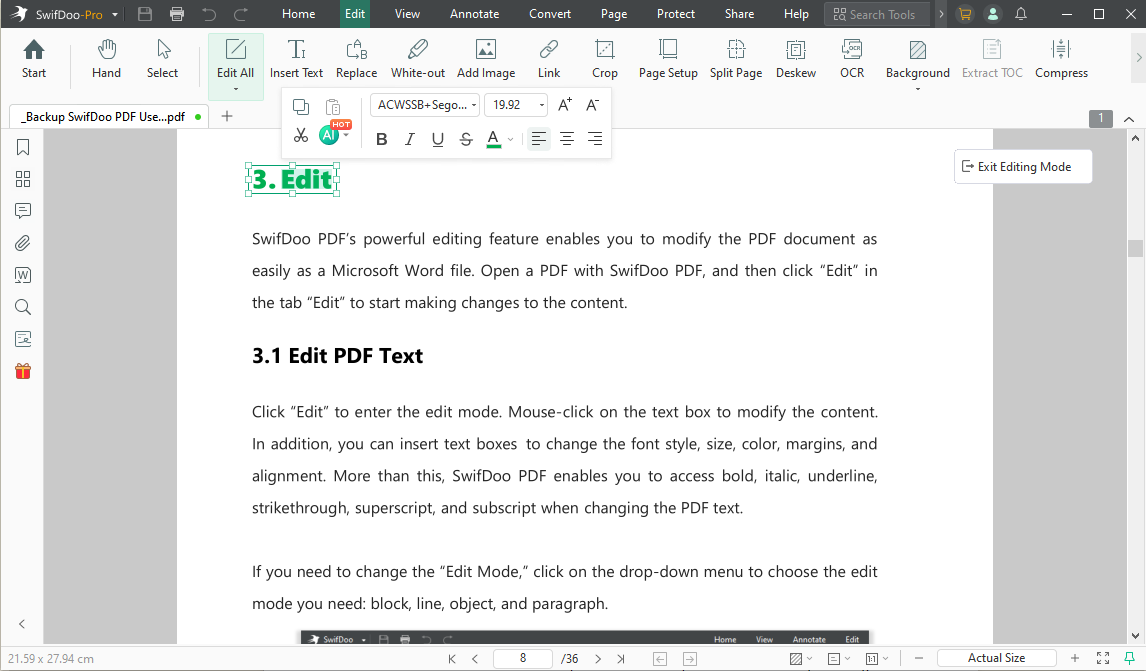
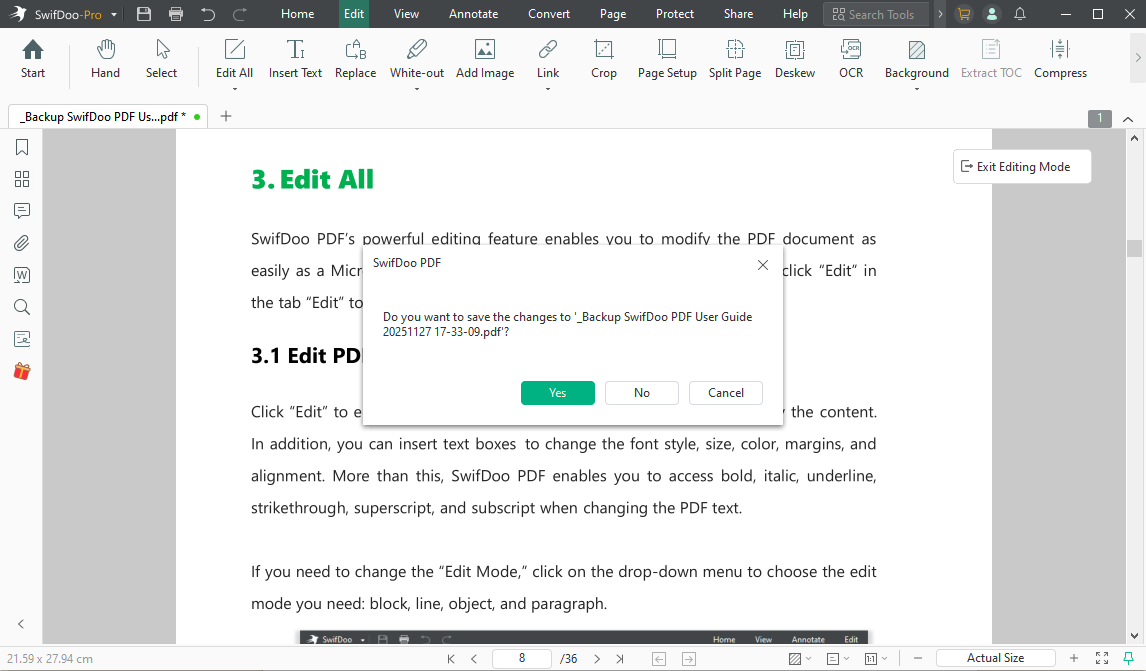
- Select the “Edit All” under the “Edit” tool. This will allow you to correct typos, replace or add text, change the font, and more.
- Save your changes by clicking “Save As (CTRL+S)”, or confirm the changes before you close the file.
How to Decrypt a PDF with SwifDoo PDF
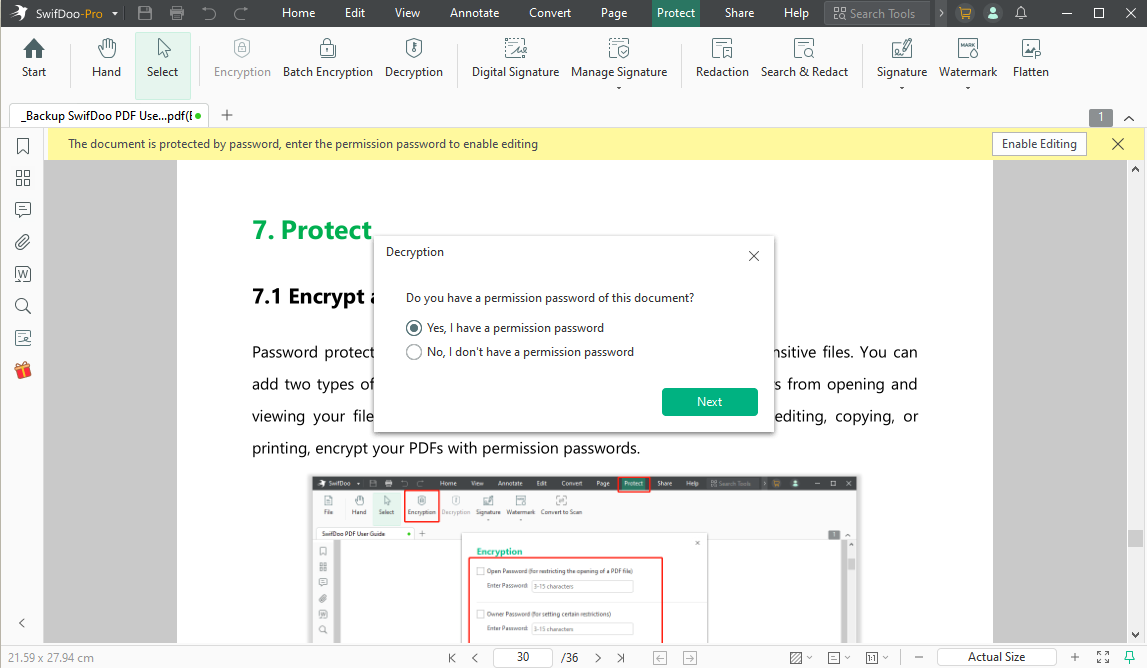
Today, many documents are stored in PDF format due to its versatility and ease of sharing. However, sometimes we encounter password-protected PDF files, which makes it difficult to access their content. In such cases, SwifDoo PDF will allow you to unlock these files and retrieve their full content.
- Open the PDF file in SwifDoo PDF.
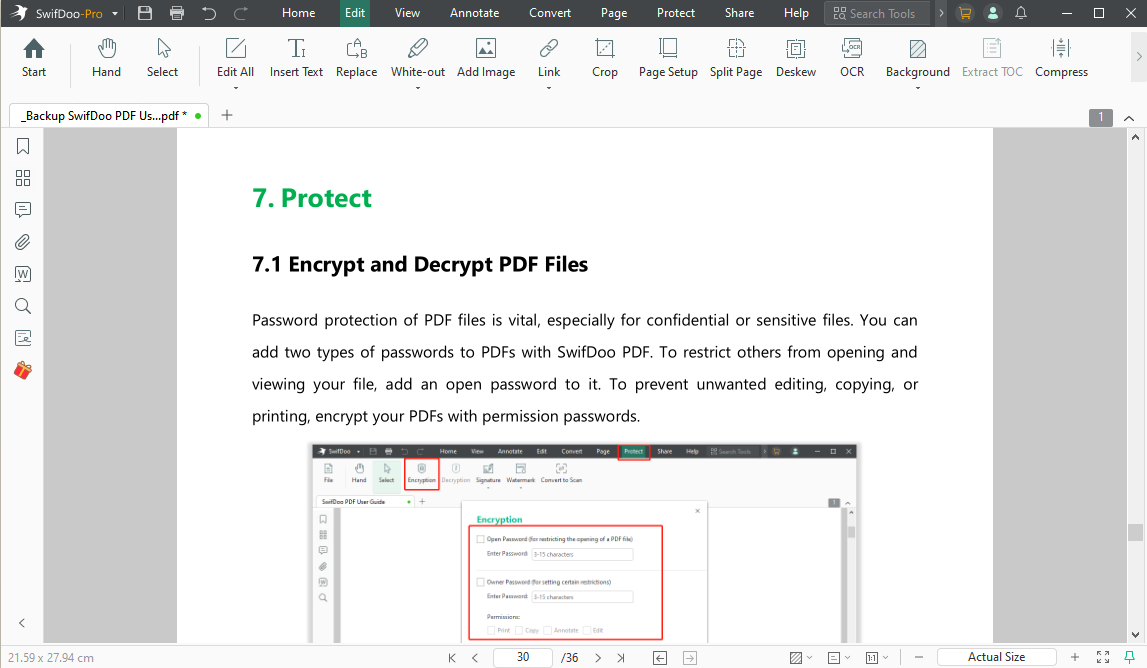
- Go to security settings: “Protect” -> “Encryption” from the top menu, then you can just set up the passwords for both opening file and permission for further protection, then simply click “Apply” button.
With the description feature, you can also decrypt both passwords easily.
Thanks to these practices and applications, SwifDoo PDF can become an effective tool supporting everyday business PDF processes, improving their efficiency and productivity.
Affordable Pricing
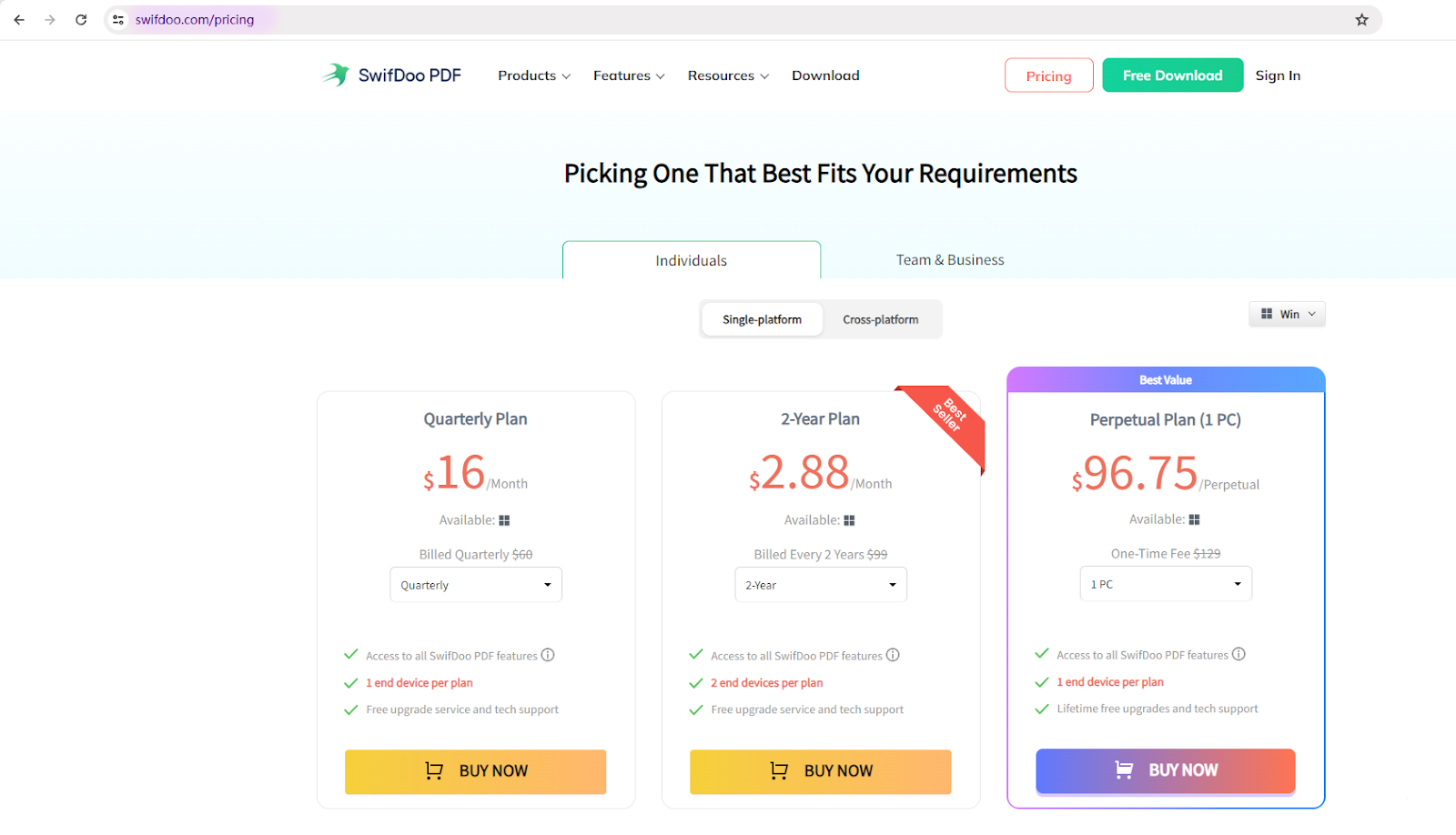
If you compare prices with other premium PDF editors, SwifDoo PDF is a much more affordable option. Overall, while it’s not completely free, it is an excellent free PDF viewer for users who regularly read PDFs. And its completely free online converter tools are of great assistance in the case of PDF conversions: such as PDF to Office, PDF to DWG, PDF to Images, etc.
In a Nutshell
Choosing a PDF editor comes down to two key aspects: professional and personal needs. However, other factors, such as proficiency, ease of use, and affordability, also play a role. If performance and top-tier features are important, and you’re skilled enough to fully utilize advanced editing features, you should choose a full-fledged PDF editor. It’s as simple as it sounds.
If you’re looking for a powerful PDF editor that offers a desktop app and a complete set of PDF tools, look no further than SwifDoo PDF.