Protecting the integrity of electronic documents is becoming increasingly important across all industries. Whether sharing contracts, academic reports, or official documents, ensuring that PDF files are not tampered with is crucial. Setting PDF files to read-only or non-editable helps maintain document authenticity, prevents unauthorized modifications, and preserves a reliable record of the original content. Fortunately, modern PDF tools offer easy-to-use file protection methods, among which JOPDF stands out for its speed, ease of use, and powerful protection features.
This article will explain in detail why protecting the integrity of PDF documents is essential, introduce JOPDF as an effective document protection solution, and provide a detailed guide on how to use JOPDF to set PDF files to read-only or non-editable. This article also includes tips on other PDF security features to help you maintain complete control over your electronic documents.
Why has the integrity of PDF documents become crucial?
PDF files are very useful because they display the same across different devices. However, most PDF readers generally allow users to copy text, save new versions, and even edit files with specific software. Setting a PDF to read-only mode is useful in the following situations:
-
Sharing formal documents, such as invoices, contracts, or certificates
-
Submitting assignments or reports where completeness is required
-
Sending design drafts or work without wanting others to make changes
-
Publishing manuals or e-books where consistency is required
-
Preventing accidental editing when working with colleagues
Protecting your PDFs makes you appear more professional while ensuring the document content is exactly as you intended.
What is JOPDF?
JOPDF is a free and easy-to-use PDF management tool designed for those who need reliable editing and protection features. It can do many things, such as:
-
Merging and splitting PDF files
-
Compressing large files
-
PDF conversion
-
PDF editing and annotation
-
Password-protecting PDFs
-
Restricting editing, copying, and printing permissions
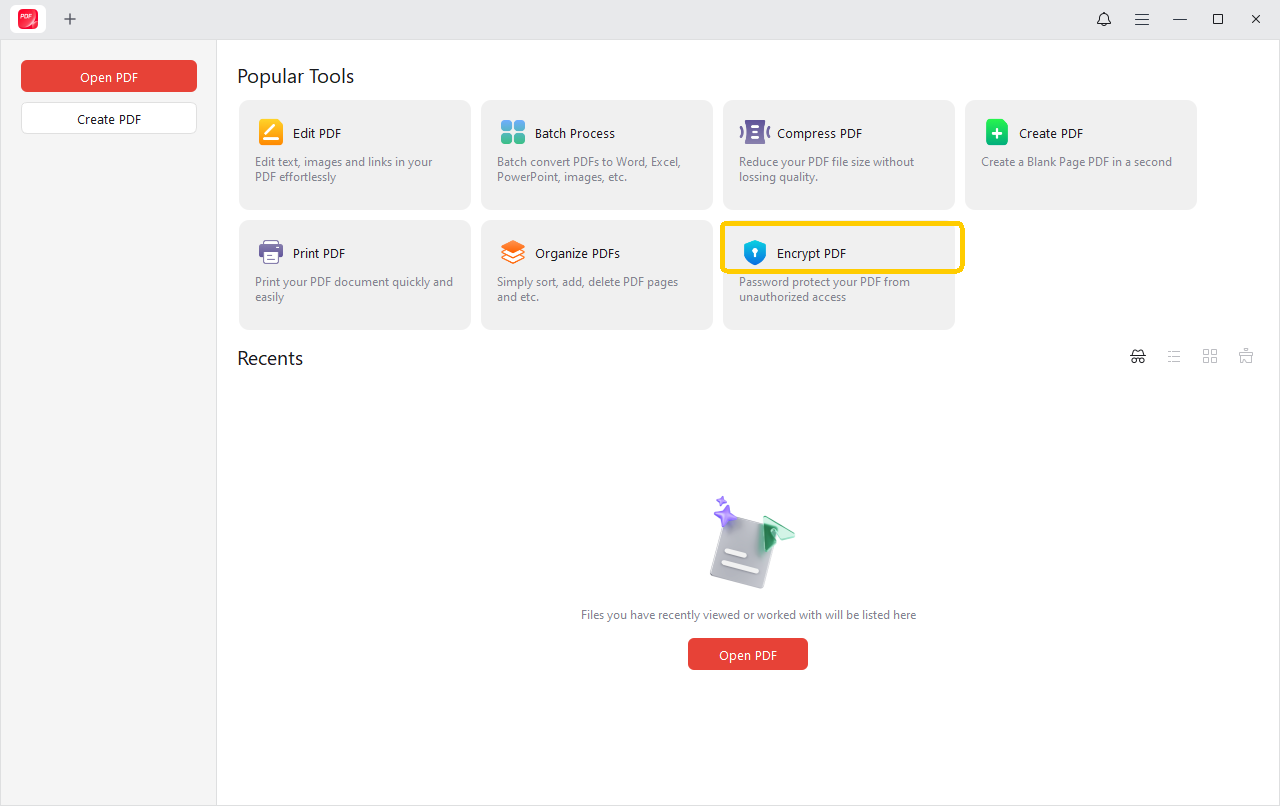
JOPDF has a clean and simple interface, making document security easy even for those with limited technical skills. One of its best features is the ability to password-protect PDF documents or restrict editing and printing permissions.
How to Set a PDF File to Read-Only Using JOPDF?
Next, I will introduce how to encrypt PDF documents using JOPDF and set access permissions.
Step 1: Open JOPDF
Download and launch the JOPDF application. After launching, the product interface will display all available PDF operation functions.
Step 2: Select “Encrypt PDF”
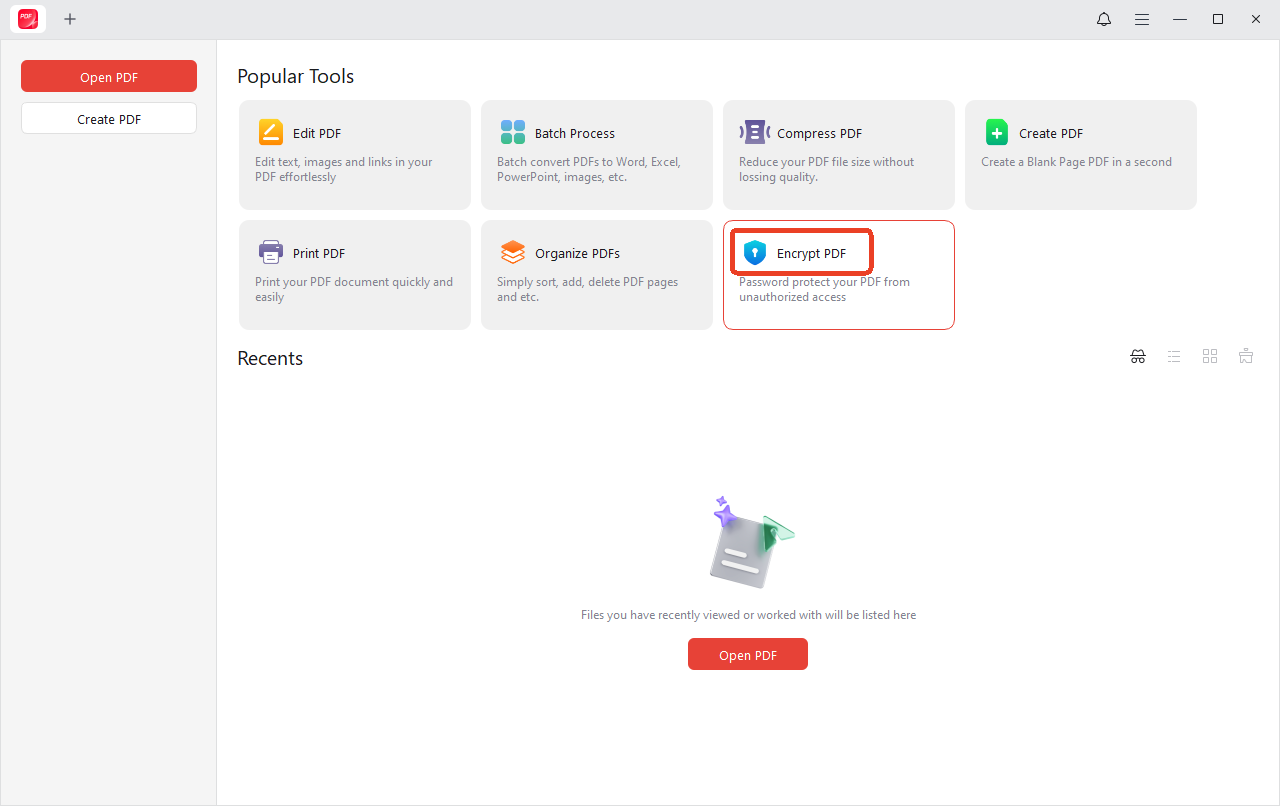
From the main menu, click “Encrypt PDF” and select the PDF file you want to protect.
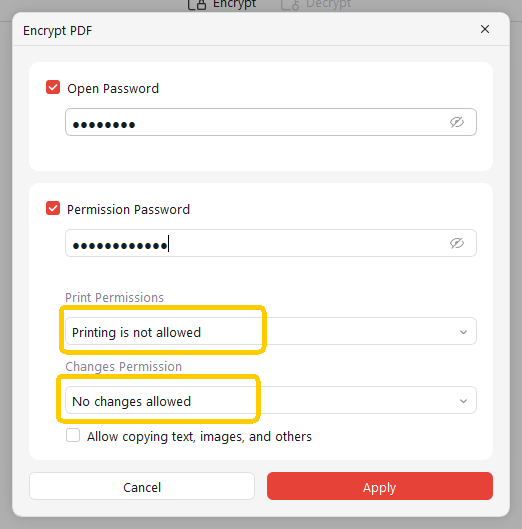
Step 3: Set a Password
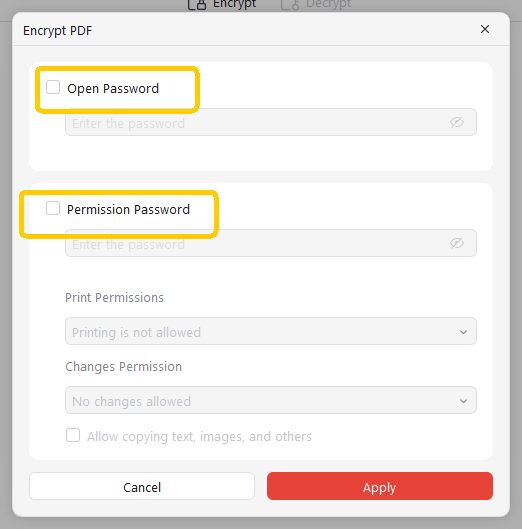
You can set a password for opening the file, a permission password, etc. The permission password is different from the open password required to view the file.
The owner’s password controls editing permissions. Please enter a strong password that only you know.
Step 4: Disable Editing Permissions
Disable printing (optional), Disable modification. This will make your PDF file read-only.
Step 5: Save and Test the File
Save the protected file and then reopen it in a standard PDF reader (such as Adobe Acrobat) or browser.
Try editing or copying the text—these operations should now be disabled unless the owner’s password is entered.
Understand the advantages of JOPDF
Besides password protection and permission settings, JOPDF includes other powerful features for manipulating PDF documents:
-
No watermark: You can perform any operation on PDF documents without any watermarks when saving or downloading.
-
No registration required: No separate account registration is needed; simply download JOPDF with one click to easily use it.
-
Document conversion: JOPDF supports converting PDF documents to Word, Excel, PowerPoint, and images.
-
PDF compression: Reduce the size of PDF files while maintaining the original file quality.
Conclusion
Protecting your PDF files is crucial to ensuring their authenticity, privacy, and professionalism. Whether sharing confidential documents or distributing materials that shouldn’t be modified, setting PDFs to read-only mode is a practical approach. JOPDF provides a user-friendly and effective way to achieve this protection through password restrictions and access controls.
Following the steps in this guide, you can easily set your PDFs to non-editable or read-only mode, ensuring your content remains intact. As digital communication becomes increasingly prevalent, protecting your documents becomes more important—and JOPDF provides everything you need, efficiently and securely.