Video recording should be fun, but that excitement quickly fades when the camera reveals tired skin, uneven tone, or poor lighting. Most creators don’t have time for a full makeup routine. If you want to look camera-ready without makeup and avoid fake-looking filters, Filmora’s AI-powered Video Beauty Filter is the perfect shortcut. Learn 5 simple hacks to get a polished, authentic look in seconds.
Part 1: Beyond Makeup: Why Filmora’s AI Beauty Filters Work So Naturally
What makes Filmora’s beauty tools different isn’t just the effect; it’s how intelligently the AI works behind the scenes.
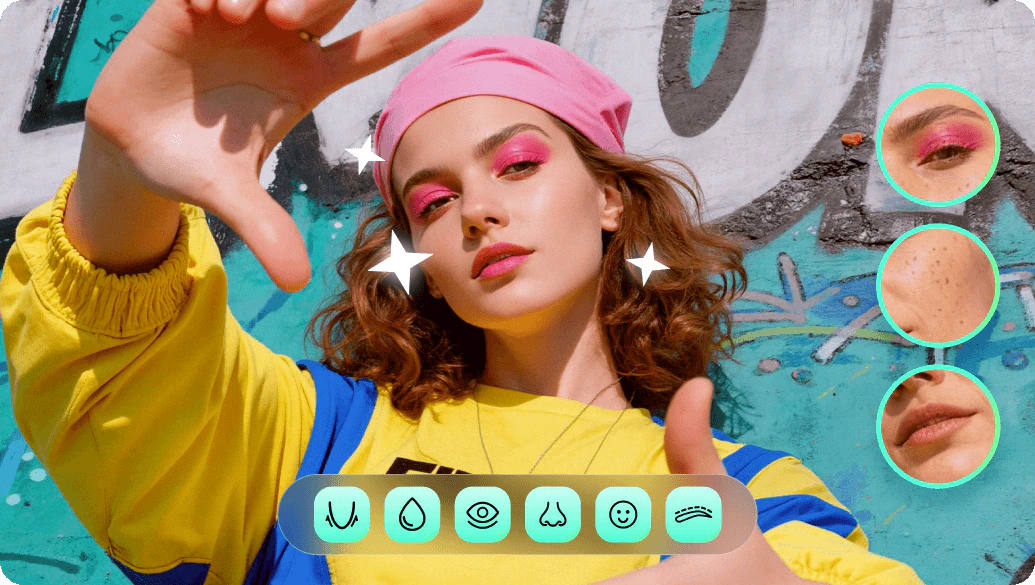
Instead of applying a flat blur like old filters, Filmora analyzes your:
- Skin texture
- Lighting in the frame
- Facial structure
- Natural tones and shadows
This helps it enhance your look while keeping real details like freckles, smile lines, and expressions intact. A lot of people think beauty filters completely change your face. In truth, Filmora doesn’t really change your look completely; it just makes it better.
You could compare it to a digital version of light makeup that hides blemishes, makes your features brighter, and evens the skin color without giving you a totally different look.
Using Filmora’s AI beauty filter is almost like having a built-in makeup artist who keeps everything subtle, natural, and believable, even in real-time previews.
Part 2: 5 Smart Filmora AI Beauty Filter Hacks to Look Camera-Ready (No Makeup Required)
One of the major advantages of Filmora’s beauty tools is the speed at which they can change your look visually to a great extent, and still not give you away that you used filters. Just five simple tweaks can make you look like you’ve been in a hurry and unprepared, but now, you’re actually polished and confident.

- Soften Skin and Reduce Visible Blemishes (Smart Smoothing)
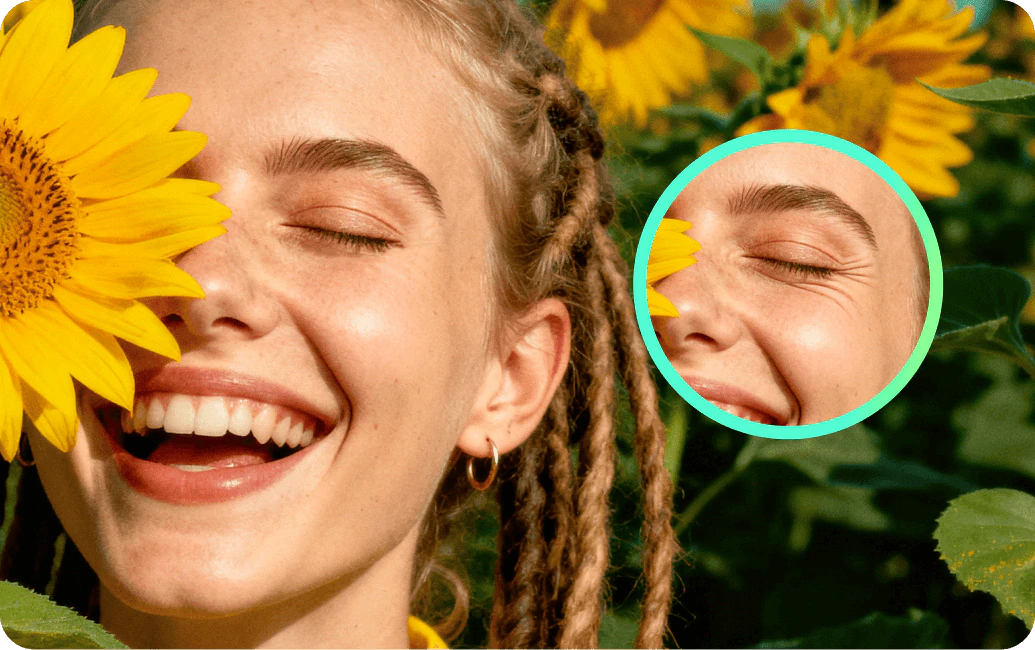
One of the typical issues that frequently happens is that the rough illumination highlights the pores, dark spots, and the texture excessively. With Filmora’s Skin Smoothing tool, you can make those irritants less visible while still preserving the natural features that make your face authentic.
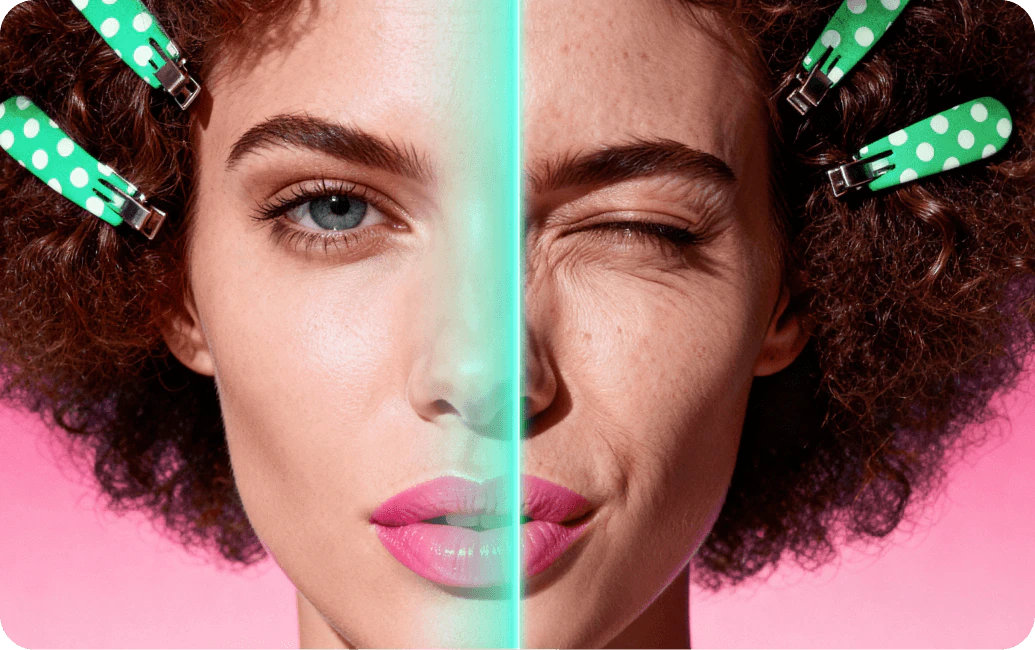
How to apply:
- Import your video and select the clip
- Open AI Beauty → Skin Smoothing
- Adjust slowly until your skin looks refreshed, not edited
A good rule: if you can’t tell the effect is applied, you’ve done it right.
- Subtle, One-Click Teeth Whitening
Sometimes the camera can slightly darken or warm your smile, even in good lighting. Filmora’s teeth-whitening option gently brightens without turning your smile unnaturally white.
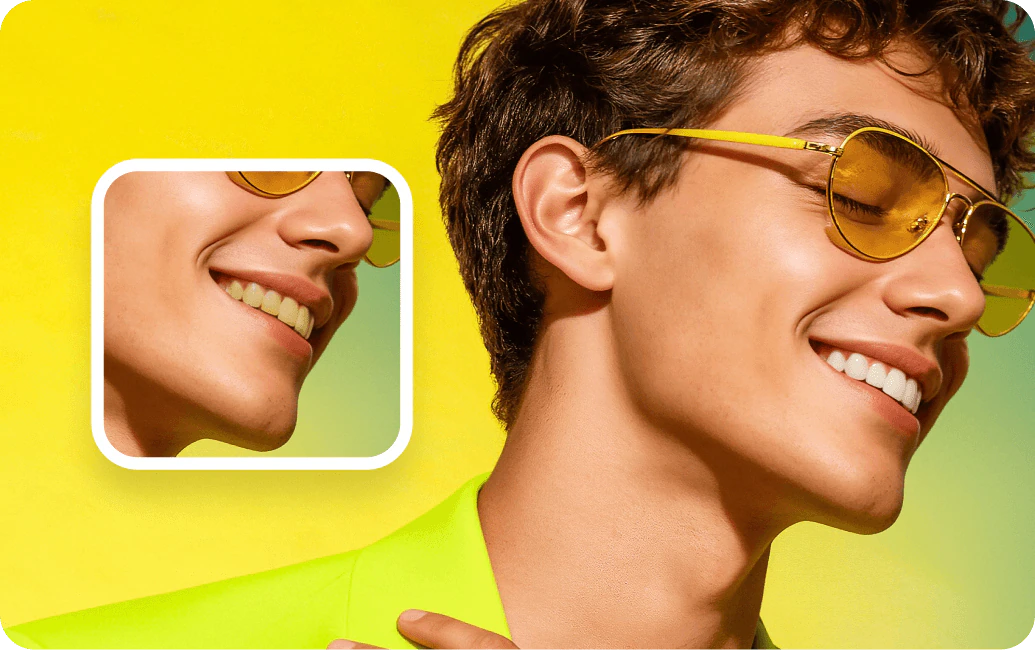
How to use:
- Go to Facial Enhancement settings
- Increase Teeth Whitening just enough to brighten the tone
Small adjustments work best; think natural dental clean, not glowing stickers.
- Light Contouring with Face Slim Balance
Instead of dramatically reshaping your features, Filmora offers balanced adjustments that mimic soft contouring—helping define the jawline and cheeks while keeping your facial identity fully intact.
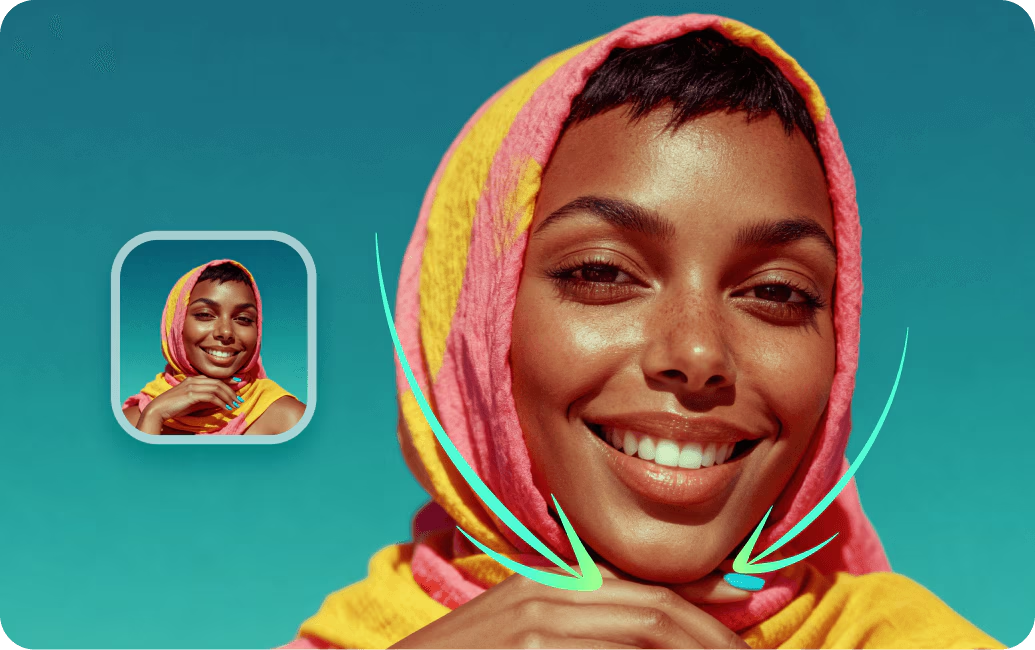
Steps:
- Select Face Shape Adjustments
- Adjust the slider slightly until your face looks subtly refined
Use this feature sparingly. It should give structure, not change who you are on screen.
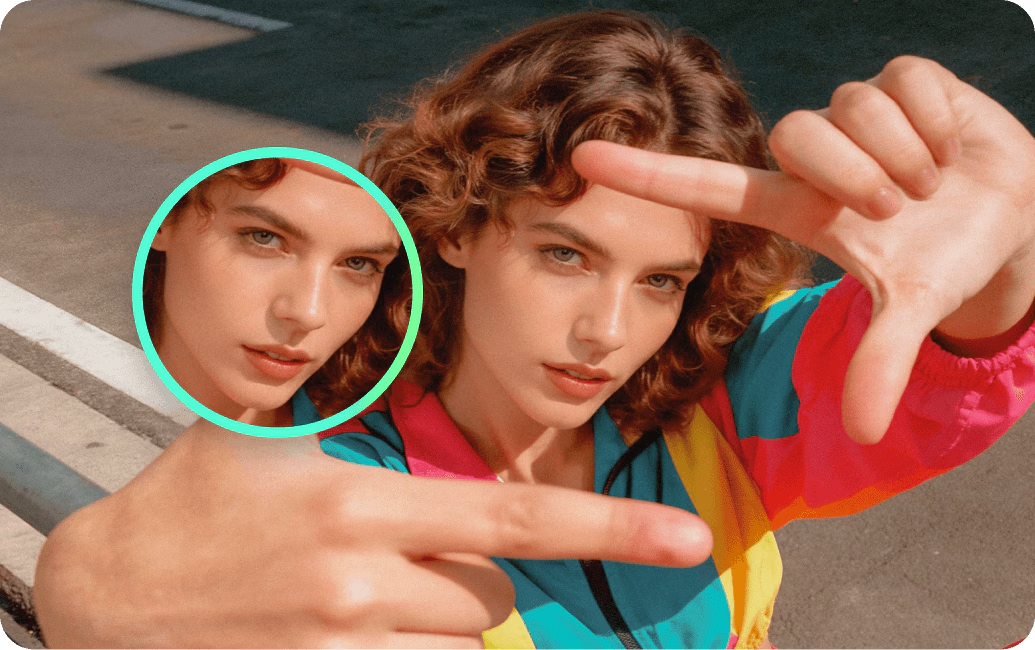
- Fix Poor Lighting and Video Color Tone with Filmora AI
Not all video productions benefit from good lighting. Filmora’s tone correction can brighten your skin by fixing fading colors, adding light to areas of shadow, or even removing the typical yellowish tint of an indoor light.
To apply:
- Turn on AI Tone Correction
- Adjust the tone until your skin appears natural and evenly lit
This feature alone can make a video feel more professional.
- Preview and Fine-Tune in Real Time
Filmora is giving you the power to preview all changes to your footage in real time. By doing this, you can perfect every little detail until it looks natural and seamless.
How to use:
- Enable Real-Time Preview
- Test each slider while watching the result live
This makes the editing process faster and avoids over-editing.
It saves time and helps you avoid over-editing. If you want to try these settings yourself, explore Filmora’s AI beauty filter and experiment with the controls.
Part 3: The Final Verdict: Why Filmora AI is the Best Filter for Saving Time and Money
If you are a person who has ever made a video and then thought to yourself, “I look tired” or “I should have done my makeup,” then you are not an isolated case. The majority of creators don’t always have the time (or the will) to get fully ready before recording. The Wondershare Filmora’s AI Beauty Filter is a perfect solution in such a situation, as it provides a refined, imitation-makeup kind of result, which can be an essential prop-free style.
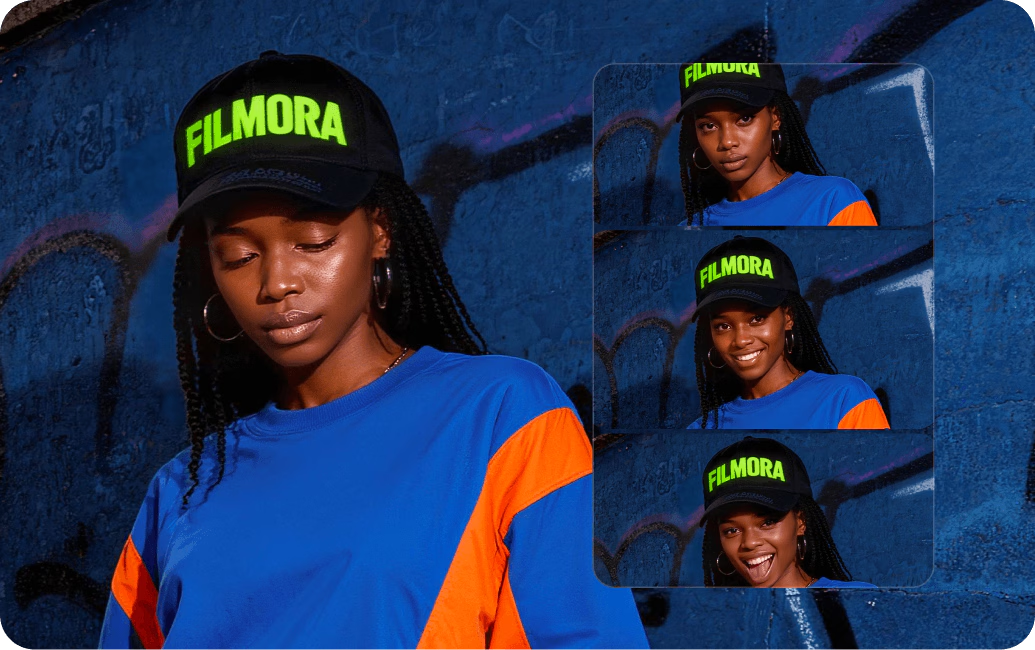
With Filmora, you have quick, on-the-spot controls that drastically simplify the whole process of upgrading your footage instead of going for retakes or using some external apps to touch up your video. A few features like smoothing, correcting the tone, and faint facial refining give you a fresh, natural look just in a matter of seconds.
Here’s what you actually save with Filmora:
- Time: No need for lengthy prep or detailed editing
- Money: Skip external beauty apps, studio lighting, or glam purchases
- Stress: You can record whenever—not just on “good face days.”
For anyone creating social media content, online courses, tutorials, meetings, or video marketing, Filmora offers an effortless way to stay camera-ready. It feels less like editing and more like confidence on demand.
Conclusion
Looking great on camera shouldn’t be something that you have to force. With Filmora’s AI-powered Beauty Filter, you can make your skin even, make your eyes pop, adjust the lighting, and maintain your natural look at the same time. If you are a daily content uploader or just recording a few videos, these easy changes will make you feel more comfortable and camera-ready without makeup every time. To see these effects for yourself, download Filmora now and test the AI Video Beauty Filter—you’ll see the difference in minutes.